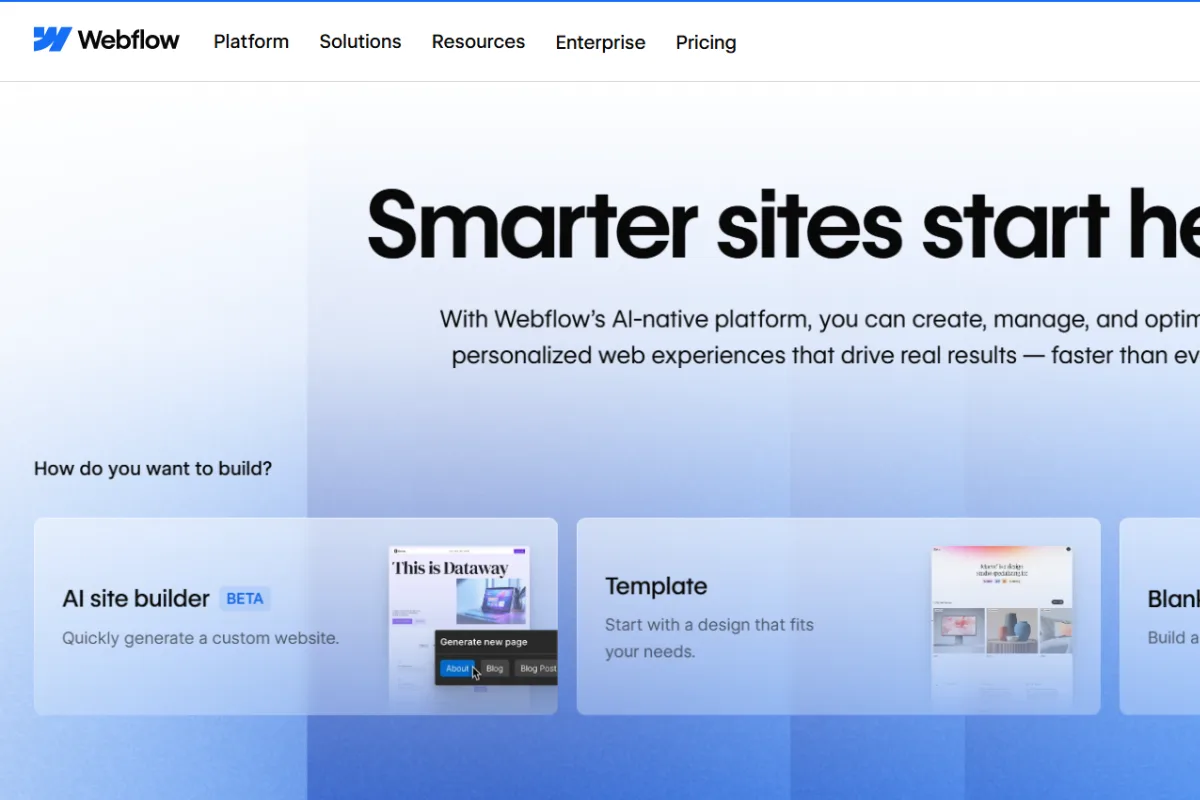
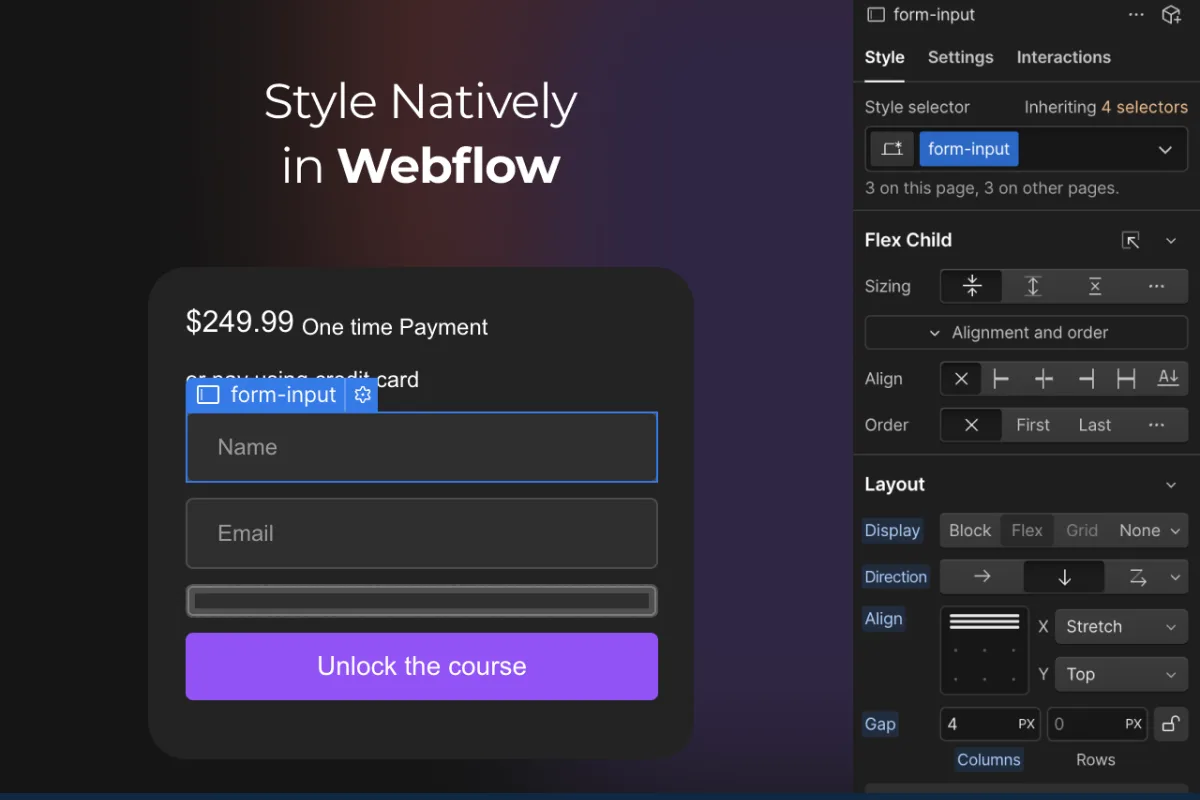
Photo by www.webflow.com
Accepting payments on your Webflow website doesn’t have to feel technical or overwhelming. Whether you’re selling digital products, services, or running a small ecommerce store, Webflow offers flexible ways to collect payments—if you set it up the right way. This guide breaks down every practical option, common mistakes, and smart pro tips so you can confidently accept payments without slowing down your site or hurting conversions.
Table of Content:
Webflow is known for design freedom and clean code, but when it comes to payments, many creators feel stuck. The truth is—Webflow can handle payments efficiently, but only when you understand its ecosystem.
From native Stripe integration to third-party tools for subscriptions and custom checkouts, this guide covers everything you need to know to set up payment gateways in Webflow without frustration.
How Payments Work in Webflow
Webflow does not try to be an all-in-one ecommerce giant like Shopify. Instead, it focuses on flexibility.
You can accept payments in two main ways:
- Using Webflow Ecommerce (best for simple stores)
- Using external tools like Stripe links, Memberstack, or Foxy (best for services, subscriptions, or advanced needs)
Pro Tip: If your website sells one or two products or services, you often don’t need full Webflow Ecommerce at all.
Stripe: The Native Payment Gateway in Webflow
Stripe is the only native payment gateway supported by Webflow Ecommerce.
What Stripe allows you to do:
- Accept credit and debit cards
- Handle one-time payments
- Manage refunds and receipts
- Accept multiple currencies (depending on country)
Setup is simple:
- Create a Stripe account
- Verify business details
- Connect Stripe inside Webflow’s Ecommerce settings
- Test in “Test Mode” before going live
Pro Tip: Always test failed payments. Most checkout issues are discovered before launch, not after.
Accepting Payments Without Webflow Ecommerce
Not every website needs a full store.
Popular alternatives:
- Stripe Payment Links for services or single products
- Buy Now buttons linked to Stripe checkout
- Custom checkout pages using third-party tools
This approach is faster, cheaper, and easier to maintain.
Pro Tip: Designers and freelancers selling services should avoid Webflow Ecommerce and use Stripe links instead.
Using Third-Party Payment Integrations
For advanced use cases, Webflow works beautifully with external tools.
Common use cases:
- Memberships & gated content → Memberstack
- Advanced checkout & cart logic → Foxy.io
- Automations & workflows → Zapier
- Custom logic → Stripe + custom code
These tools let you build powerful payment systems while keeping Webflow clean and fast.
Subscriptions & Recurring Payments
Webflow alone doesn’t handle subscriptions well.
Best approach:
- Use Stripe subscriptions
- Connect via Memberstack or custom logic
- Control access through Webflow CMS
Pro Tip: Always clearly display billing cycles and cancellation rules. Subscription trust matters more than design.
Taxes, Invoices, and Compliance Basics
Payment setup isn’t complete without legal basics.
You should always:
- Enable Stripe email receipts
- Configure sales tax (Stripe Tax if applicable)
- Add Privacy Policy, Refund Policy, and Terms pages
Pro Tip: Even small websites lose trust if refund policies are missing.
Testing Before Going Live
Never launch payments without testing.
Checklist:
- Test successful payments
- Test declined cards
- Check mobile checkout flow
- Verify confirmation emails
A smooth checkout experience directly impacts conversion rates.
Common Webflow Payment Issues
Most problems come from:
- Currency mismatch
- Unverified Stripe accounts
- Incorrect checkout settings
- Poor mobile layout
Pro Tip: Checkout design matters. A cluttered page reduces trust instantly.
When Webflow Is Not the Right Choice
Webflow is not ideal for:
- Large multi-vendor marketplaces
- Complex tax structures
- Enterprise-level ecommerce
In such cases, Shopify or a custom backend is a better option.
Conclusion
Setting up payment gateways in Webflow is not about choosing the “most advanced” option—it’s about choosing the right one. Whether you use Stripe directly, payment links, or third-party tools, Webflow gives you the flexibility to build secure, conversion-friendly payment flows without sacrificing design.
When done correctly, payments feel invisible to users—and that’s exactly what converts.
-
Yes. You can use Stripe payment links or third-party tools to accept payments without enabling Webflow Ecommerce.