Photo by Team TGM
When I first built my Webflow website, I was so focused on design that I didn’t think much about speed. The site looked great, but soon I noticed visitors dropping off quickly. Some didn’t even scroll past the hero section. That’s when it hit me — a slow site can kill engagement, no matter how beautiful it looks.
Site speed isn’t just about user patience. It directly impacts SEO rankings, bounce rates, and even conversions. Google has made it clear that faster websites perform better in search results. And in today’s world where people expect instant loading, every second counts.
Table of Content:
My Experience with Webflow Site Speed
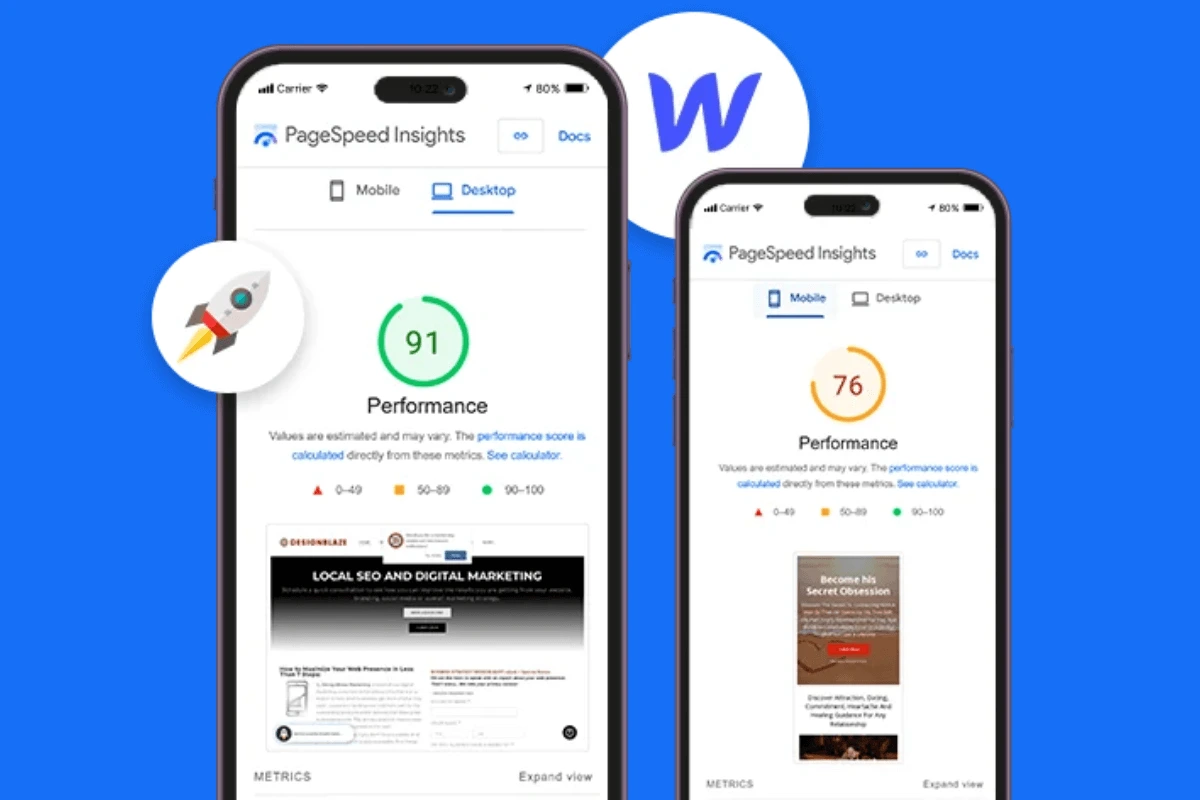
When my site first went live, I tested it on Google PageSpeed Insights, and the score was just 55/100 for mobile. I felt disappointed because I thought Webflow’s hosting would automatically take care of everything. That’s when I decided to dig deeper, experiment, and learn how to optimize my Webflow site step by step.
Over the months, I tried different tweaks — from image optimization to cleaning up unused styles. The results were surprising. Not only did my scores improve, but my visitors also spent more time on my site, and my bounce rate went down.
Here’s what worked for me.
Tip 1: Optimize Images (Biggest Speed Booster)
Images are the biggest culprit behind slow websites. My homepage banner image was originally 4MB, which is huge. After compressing it and converting it to WebP format, the size dropped to just 300KB without losing quality.
This one change improved my PageSpeed score by almost 20 points. Now, I always:
- Use WebP format for modern browsers.
- Compress images before uploading (TinyPNG, Squoosh, or Webflow’s built-in compression).
- Use the right dimensions instead of uploading extra-large files.
Tip 2: Clean Up Unused Styles Elements
When building in Webflow, it’s easy to go overboard with animations, interactions, and custom code. I had added a fancy animation on my hero section — it looked good but delayed my page load. After removing it, the page loaded nearly 1 second faster.
Some simple cleanups that helped me:
- Removing unused classes and styles.
- Keeping animations minimal.
- Deleting hidden elements that were not necessary.
Tip 3: Use Webflow’s Built-in Features Wisely
Webflow has a few hidden gems that can really help with speed. For example:
- Lazy loading images is enabled by default, which delays loading below-the-fold images until they’re needed.
- Minifying CSS and JavaScript reduces file sizes.
- Responsive images automatically serve smaller images on mobile devices.
When I realized these features were already built in, it saved me from doing extra work. Just make sure these options are turned on in your project settings.
Tip 4: Limit Third-Party Scripts Integrations
This was a big one for me. I had embedded three different analytics tools, a chat widget, and even an unnecessary plugin for forms. Each one added extra loading time.
I eventually decided to keep only Google Analytics and one essential integration. The result? My load time improved by almost 1.5 seconds.
So, my rule now is:
- Only add third-party scripts if they’re 100% necessary.
- Use lightweight alternatives when possible.
- Load scripts asynchronously so they don’t block rendering.
Tip 5: Leverage Webflow Hosting CDN
One reason I chose Webflow was its reliable hosting. Webflow uses Amazon Web Services (AWS) and Fastly CDN to deliver content globally. This means if someone in the U.S. or Europe opens my site, they get it from the nearest server.
When I shared my portfolio with clients overseas, they noticed how fast it loaded compared to before. I didn’t have to set up anything — it was all included in Webflow hosting.
Tip 6: Test, Monitor, and Improve Regularly
Site speed isn’t something you fix once and forget. I’ve made it a habit to check my site every month using tools like:
- Google PageSpeed Insights (for mobile + desktop performance).
- GTmetrix (for detailed loading waterfall).
- WebPageTest (for advanced testing).
The first time I did this, I found out that one of my pages had a video background that was too heavy. I swapped it for an image + subtle animation, and the speed shot up again.
Bonus Tips That Made a Difference
- Optimize fonts: Instead of using 5 different weights, I now use just 2 (regular + bold).
- Use SVGs for icons: They’re lightweight and scalable.
- Avoid background videos: Unless they add real value, they often slow down pages.
Each of these may seem small, but together they make your site significantly faster.
Next Step: Want to learn more about Webflow? Check out my other guides on:
Conclusion: Small Fixes, Big Results
Looking back, I realized that Webflow site speed optimization isn’t about one big trick. It’s about combining small fixes that add up. After following these steps, my site speed score improved from 55 to 92, and my visitors stayed longer.
If you’re just starting, begin with images — that’s the easiest win. Then move on to cleaning up scripts, animations, and testing regularly.
The best part? Once you get into the habit of optimizing, it becomes second nature. Your visitors will thank you, and Google will reward you with better rankings.
-
A fast-loading website improves user experience, reduces bounce rate, and ranks higher on Google search results. It directly impacts SEO and conversions.