Photo by Team TGM
Canva AI Image Generator lets you create stunning images from text in seconds. This complete guide explains how it works, real examples, pro tips, pros and cons, and whether it’s worth using in 2025.
Table of Content:
What Is Canva AI Image Generator?
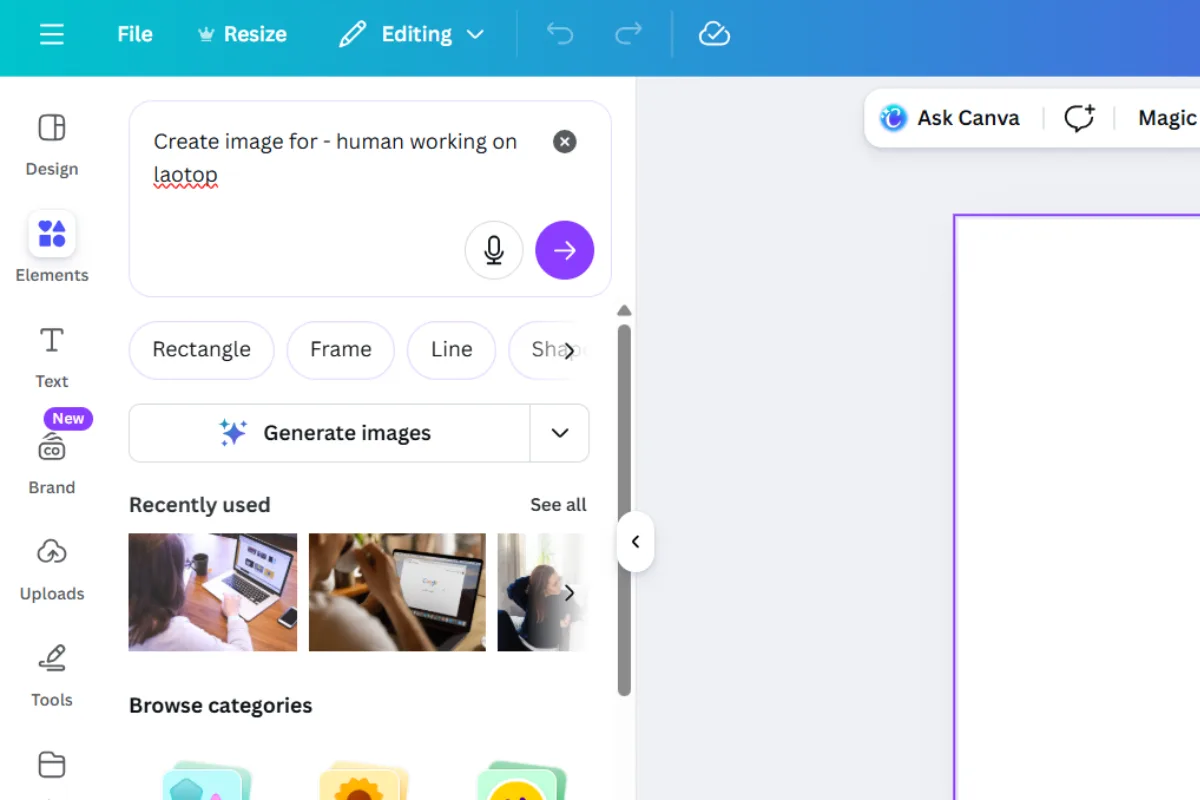
Canva AI Image Generator is a text-to-image AI tool inside Canva that creates images based on written prompts. Canva calls this feature Magic Media – Text to Image.
In simple words:
- You type what you want to see
- Canva’s AI generates an image based on that description
For example, if you type:
A modern workspace with a laptop, notebook, and coffee cup, minimal style
Canva instantly generates multiple image variations that match your idea.
This tool is perfect for:
- Bloggers
- Digital marketers
- Social media managers
- YouTubers
- Small business owners
- Students and freelancers
How Does Canva AI Image Generator Work?
Canva AI uses advanced machine-learning models trained on millions of visual patterns. When you enter a prompt, the AI:
- Analyzes the text
- Identifies objects, style, mood, and colors
- Generates multiple image options
The biggest advantage?
You can edit the generated image directly inside Canva — resize it, add text, remove the background, or apply your brand colors.
How to Use Canva AI Image Generator (Step-by-Step)
Even if you’re a complete beginner, Canva AI is very easy to use.
Step 1: Log In to Canva
Create a free Canva account or log in to your existing one.
Step 2: Open Magic Media
- Click on Create a design
- From the left sidebar, go to Magic Media → Text to Image
Step 3: Write Your Prompt
Example:
A clean and modern blog workspace with a laptop, soft lighting, neutral colors, professional look
Step 4: Choose Style and Size
Select a style such as:
- Photo
- Illustration
- 3D
- Painting
Step 5: Generate and Edit
Canva will generate multiple images. Choose the best one and customize it as needed.
Real Examples of Canva AI Image Generator
Let’s look at how people actually use Canva AI in real projects.
Example 1: Blog Featured Image
Use case: Featured image for a blog post
Prompt example:
Professional blog featured image with a laptop, marketing charts on screen, clean layout, soft colors
Why it works:
You get a unique image that matches your content — no stock photo hunting needed.
Example 2: Social Media Posts (Instagram & LinkedIn)
Use case: Educational or promotional posts
Prompt example:
Modern social media post background with gradient colors, digital marketing theme, minimal design
This is ideal for:
- Instagram carousels
- LinkedIn posts
- Reel or short-video thumbnails
Example 3: YouTube Thumbnails
Use case: High-click thumbnails
Prompt example:
YouTube thumbnail style image with bold colors, AI technology theme, dramatic lighting
Well-designed thumbnails help increase click-through rate (CTR).
Example 4: Website Hero Section Images
Use case: Landing page or homepage banner
Prompt example:
Modern SaaS website hero image with abstract shapes, clean UI style, tech startup feel
This works great for:
- Startup websites
- Service pages
- Portfolio sites
Example 5: E-commerce Product Mockups
Use case: Product display images
Prompt example:
Minimal product mockup with white background, soft shadows, studio lighting
This makes products look clean and professional without expensive photoshoots.
Pro Tips: How to Write Better Prompts in Canva AI
Prompt quality decides image quality. Follow these pro tips:
1. Be Descriptive
Instead of writing “office image”, write:
Modern office workspace with laptop, natural light, minimal design, professional mood
2. Always Mention Style
Examples:
- Photorealistic
- Illustration
- 3D render
- Flat design
3. Control Mood and Colors
Add words like:
- Bright
- Professional
- Soft lighting
- Pastel colors
- Dark background
4. Use Simple English
Long, complicated sentences confuse AI. Keep prompts clear and structured.
Key Features of Canva AI Image Generator
- Text-to-image generation
- Multiple visual styles
- Built-in Canva editor
- Easy resizing for social media
- Brand Kit support (Pro)
- Background remover (Pro)
Pros and Cons of Canva AI Image Generator
Pros
- Extremely beginner-friendly
- Saves time and money
- No design skills required
- Works inside Canva
- Ideal for content creators
Cons
- Less creative control than Mid journey
- Free version has usage limits
- Hyper-realistic images are sometimes inconsistent
Canva AI vs Other AI Image Generators
| Tool | Best For |
| Canva AI | Beginners, bloggers, marketers |
| Midjourney | Artistic and cinematic visuals |
| DALL·E | Experimental and creative images |
| Adobe Firefly | Professional design workflows |
If you want speed, simplicity, and editing in one place, Canva AI is the better choice.
Canva AI Free vs Pro: What’s the Difference?
Free Plan
- Limited AI image generations
- Basic styles
Canva Pro
- More AI credits
- Premium styles
- Brand Kit
- Background removal
Pro Tip: If you create content regularly, Canva Pro is worth the investment.
Who Should Use Canva AI Image Generator?
- Bloggers and content writers
- Social media managers
- Digital marketers
- Small business owners
- Freelancers and students
Common Problems and Solutions
Problem: Images don’t look realistic
Solution: Add lighting, camera angle, and style details to your prompt
Problem: AI generates irrelevant images
Solution: Rewrite the prompt with more clarity
Problem: Free limit is exhausted
Solution: Upgrade to Pro or wait for credits to reset
Final Verdict: Is Canva AI Image Generator Worth It?
If you are a blogger, marketer, or small business owner who wants professional visuals without hiring a designer, Canva AI Image Generator is 100% worth using.
It’s fast, easy, affordable, and perfectly suited for beginners — exactly why it’s becoming one of Canva’s most powerful features.
-
Yes, but the free version has limited image generations.