Photo by Team TGM
This guide helps beginners create a professional resume using Canva AI with templates, customization tips, layout rules, and branding advice.
Table of Content:
Have you ever wondered why some resumes instantly catch attention while others get overlooked?
The secret is clean design + strong personal branding—and Canva AI makes this easier than ever.
In this guide, you’ll learn how to use Canva AI to design a modern, professional, and ATS-friendly resume that helps you stand out in any job application.
Featured Image (1200 × 800) — Prompt for Generation
“Minimal, modern workspace with laptop screen showing Canva AI resume design interface, soft gradients, white and purple theme, clean professional style, 1200×800.”
Why Use Canva AI for Resume Design?
- It saves hours of manual formatting
- You get access to thousands of templates
- AI magically generates layout ideas
- Perfect for beginners—no design skills needed
- Export options: PDF, PNG, JPG
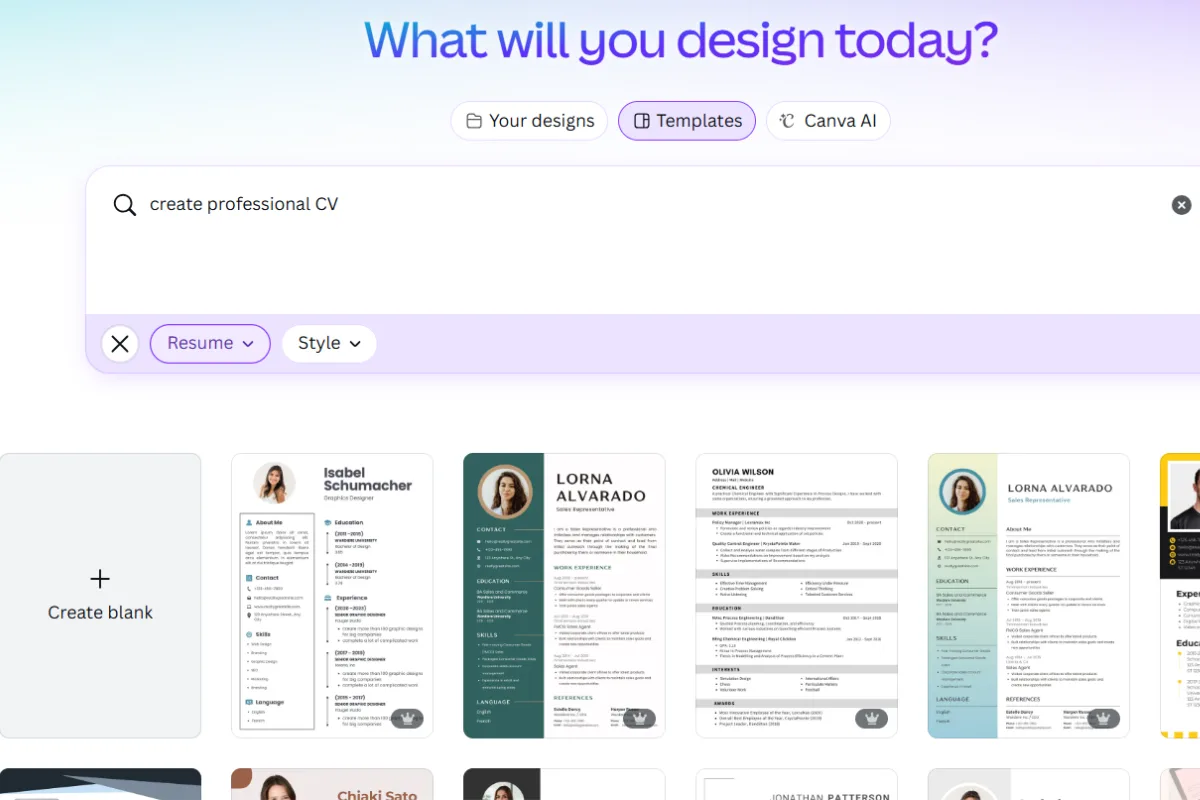
Step 1: Search for ‘Resume’ in Canva
Go to Canva → Search “Resume Templates.”
You’ll find modern, minimal, creative, corporate, and AI-generated styles.
Step 2: Use Canva AI to Generate Your Resume Layout
Click “Magic Design” → Upload your details / text.
Canva AI will create multiple resume variations automatically.
You can regenerate until you get the style you want.
Step 3: Add Your Personal Information
Make sure to include:
- Name title
- Contact details
- Summary/About Me
- Skills
- Work experience
- Education
- Certifications
Step 4: Customize Colors, Fonts Layout
Use easy branding rules:
- Use 1 primary color
- Use 2 clean fonts (heading + body)
- Keep plenty of white space
- Align everything properly
Step 5: Make It ATS-Friendly
Avoid:
Overly decorative fonts
Icons instead of text
Too many columns
Step 6: Download in High-Quality PDF
Click Share → Download → PDF Print
This keeps your text crisp and professional when sending to recruiters.
PRO Branding Tips (Add This Section as Requested)
Use a consistent font across your resume LinkedIn
Add a small personal logo if you have one
Keep section spacing equal
Use Canva AI to rewrite your bio in a professional tone
Save multiple versions: Creative, Corporate, Minimal
These small branding touches make a big difference.
In-Article Image Prompt
“Canva interface screenshot style illustration showing resume templates generated by AI, clean modern UI, purple/blue theme, minimal look.
Conclusion
Designing a professional resume doesn’t need to be stressful. With Canva AI, you can create a clean, beautiful, and recruiter-ready resume in just a few minutes.
Follow the steps above, use the branding tips, and your resume will make the right first impression.
-
Yes. Canva AI helps you instantly generate clean and modern resume layouts using tools like Magic Design and Magic Write. You can customize fonts, colors, and sections to match your personal branding.